The MyTimesheets Employee Self-Service App
You can watch a video of how the app works here – Access your MyTimesheet data + more when using the MyTimesheets Personal App
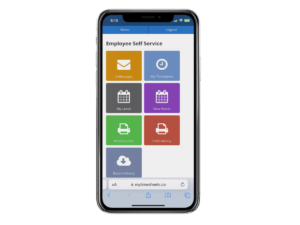
The MyTimesheets “Employee Self-Service App” allows your staff to easily access their timesheet data on your Smartphone (or PC).
They can use it to review their timesheet data and send messages to a manager via the MyTimesheets Messaging tool. Note: There are other options which may be enabled.
Accessing and using the MyTimesheets – Employee Self-Service App is also super easy. This quick overview covers everything they need to know.
Menu Icons and what they do:
Messages: This will allow you to send and receive messages to and from your manager.
My Timesheets: This button will allow you to see your timesheet data for the week. There is also a Notify/Message button that you can use to send a to a manager. In some cases, you may also be able to add data using the Add button.
My Leave: If enabled, this button will allow you to apply for Leave, see your current Leave balance and message a manager.
My Roster: If enabled, this button will allow you to view your Roster apply for Leave and message a manager.
Reports and Export: These buttons will allow you to print a report for the Current Week or any historical period, as well as being able to export your timesheet data to Excel.
You can also access the MyTimesheets Employee Self-Service portal via a PC using the same website and user login details. When you do the buttons are the same, but the layout is slightly different.
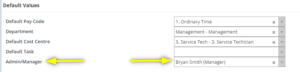
Note: We have added a new feature whereby when staff use any of the Message Buttons, the message will be sent to their Default Amin/Manager via a notification in the MyTimesheets Management portal. It will also send an Email. If the employee does not have a default admin set, they can select from a list of Admins or swap to a different Admin.
This default Admin is set in the Employee Masterfile Screen